

Updates to Support Subscriptions
We’re making updates to Support Subscriptions to make ongoing maintenance easier for all Amasty customers. Below you’ll find a quick recap and answers to the most common questions.
Key Highlights: What’s Changing?
Before the update | After the update |
| Support coverage applied to the entire account when all extensions in the account automatically had access to support. | Support Subscriptions will need to be assigned to specific projects. The number of projects a subscription can cover depends on the plan. |
Note: Active Account Support subscriptions will remain active until they expire or are canceled. They will continue to operate under their original terms, covering the entire account and all associated projects. All new subscriptions are created and sold as Project Support.
Frequently Asked Questions
What has changed in how Support Subscriptions work?
Support Subscriptions now work in two formats:
| Type | Description |
| Account Support (applicable to Pro, Premium, Amasty One) | Covers the entire account. Works by the old logic. Active while valid. |
| Project Support | Covers only the projects it is assigned to. Works by the new “project-based” logic. |
What is the difference between Account Support and Project Support?
Characteristic | Account Support | Project Support |
Coverage | Entire account | Only assigned projects |
Quantity per account | One active subscription | Unlimited |
Assignment required | No | Yes |
Assignment scope | Automatically covers all products | Covers projects linked to the subscription |
Availability | No longer sold | Available for purchase |
Transition | Will remain active until canceled | All new and renewed subscriptions use this logic |
How can I purchase a Support Subscription?
Only Project Support subscriptions are available for purchase on the Amasty website.
The number of Project Support subscriptions in your account is not limited.
What happens when I renew my subscription?
When renewing an old Account Support subscription, a Project Support subscription will be created instead. The new subscription logic will apply automatically.
What statuses do Support Subscriptions have?
Status | Meaning |
ACTIVE | The subscription is active, or it was canceled, but the end date has not yet passed |
INACTIVE | The subscription period has ended |
How to assign a subscription to a project?
Each Project Support subscription can cover a specific number of projects depending on the plan. You can assign both your own and shared projects.
If a subscription is not assigned to any project, it does not provide support (exception: Magento 1 modules).
To assign your subscription:
Go to My Account → Support.
In the Support subscriptions table, find the needed subscription and click Assign projects (or Manage projects, if it’s already linked).
In the Project support management window, select the projects you want to link to this subscription.
Click Assign and confirm your action.
If you don’t have any projects yet, you’ll see the message “No projects found.”
Click Create a project to go to the License registration tab and add one before assigning the subscription.
How to unassign a project from a subscription?
You can unassign a subscription only a limited number of times (shown in the confirmation window).
To unassign your subscription:
Go to My Account → Support.
In the Support subscriptions table, find the subscription and click Manage projects.
In the Project support management window, locate the project(s) you want to remove.
Click Remove and confirm your action.
Note: If the Remove button is not available (greyed out), it means that the subscription has reached its limit of 2 unassign actions.
The link between a project and a subscription is also automatically removed in the following cases:
The project is deleted.
The subscription is refunded.
The shared access to the project is revoked.
Where are Support Subscriptions displayed in the account?
Go to Customer Account → Support.
Here you can see all the Project and Account Subscriptions with their current statuses.
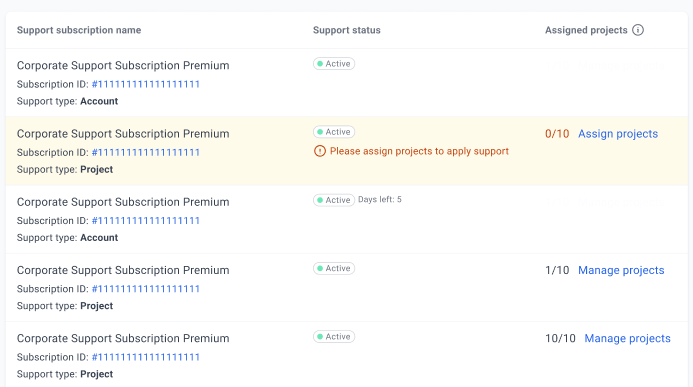
If an active Project Support subscription is not assigned to any project, it will display a message: “Please assign projects to apply support.”

How to check the support status of a project?
In License Registration → My Production Projects / Projects Shared with Me, there is a new column that displays the current state of support for this project.
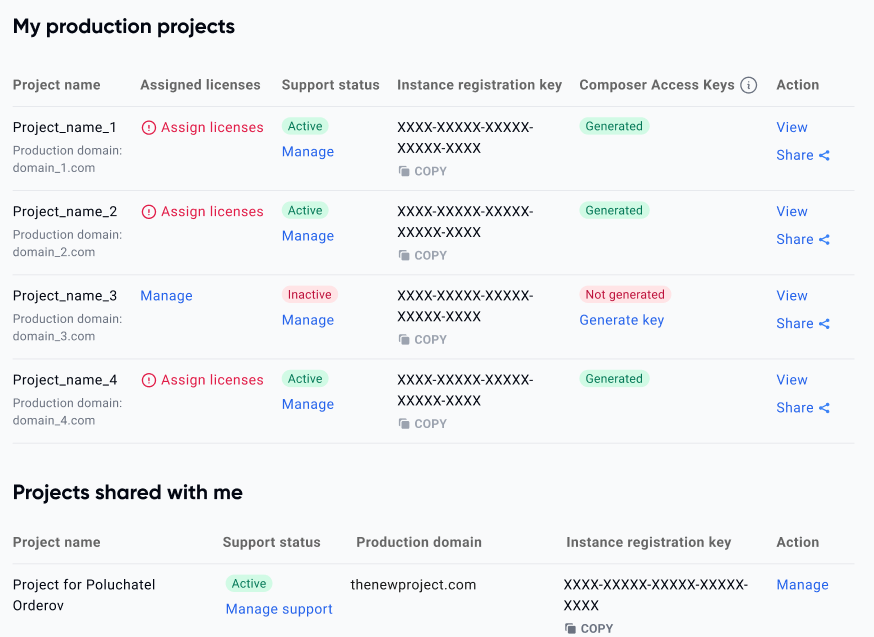
State | Meaning |
ACTIVE | There is an active or canceled (but not yet expired) Support Subscription linked |
INACTIVE | There is no active subscription, or it has expired |
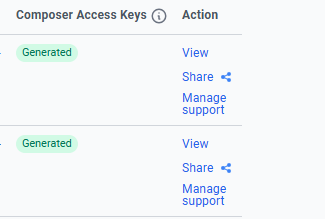
There is also a Manage Support button that opens the Support tab for managing support subscriptions.
Where can I see assigned Support Subscriptions?
On the project view page, there is a block Assigned Support (if at least one active support subscription is linked). For each subscription, the following information is displayed:
Subscription ID
Days left (if canceled but still valid)
Assigned by {email} — if added by another user
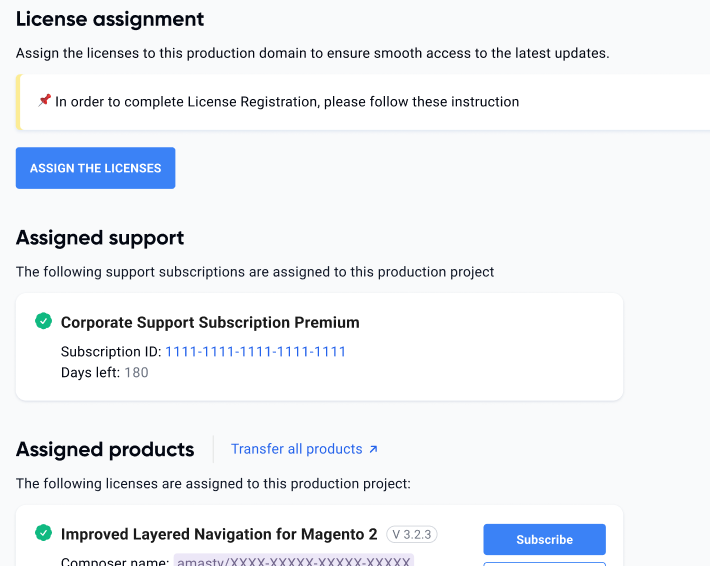
All users with access to the project can see all assigned Support Subscriptions.
Loading
Login and Registration Form